Consignify Documentation
Guides to set up and use Consignify with examples and videos.
Get your shop ready to use Consignify. Setup takes five steps, best done in this order:
- Choose your settings in the app under Settings and setup. The settings to decide are described below.
- Load your consignors, by CSV import or one at a time. See Load Consignors.
- Link your products to consignors. See Assign Products to Consignors.
- Load your order history. Consignify records new orders from the moment you install it. To bring in earlier orders, open Settings and setup › Tools and load your order backlog from a date at least as early as your settled date (below). Load it after linking your products, so each sale is recorded with its consignor.
- Import past payouts, if you paid consignors before using Consignify and want that history here. See Import Pre-existing Payouts.
Settings to decide
Every setting has a default, and you can change any of them later. Payout and commission settings apply to every sale that isn't in a payout yet, so a later change also changes what you owe on those sales. A saved payout keeps its amounts.
- Shop details: your shop name, email, phone and address appear on payout receipts and in the consignor portal. Shop language sets the default language of emails (each consignor can have their own). Default fate of unsold items (return to the consignor or donate) applies to consignors set to Shop default, as new consignors are.
- Payout eligibility: when a fulfilled sale becomes eligible for payout. Rolling makes it eligible a set number of days after fulfillment (30 by default; your return window is a good choice). Monthly makes everything fulfilled in one month eligible on the day you choose in the next month. You can also require an order to be paid before its items become eligible.
- Settled date (Orders prior to this date have been settled outside Consignify, in Payout eligibility): sales before this date still appear in your sales history, but they are treated as settled, so they earn no commission and never come up for payout. It starts as the day before you installed Consignify. Set it to the date from which Consignify should handle payouts, such as the day after you last paid consignors through another system. You can also settle individual sales later; see Settle Sales.
- Commission settings: the default consignor share of sales (40% unless you change it; you can override it for a consignor or a product), the commission calculation method (see Commission policies below), whether commission is based on the price before discounts, and whether to exclude tax when your prices include it.
- Sale attribution (in Commission settings): what happens to a product's sales when you reassign the product. With Follow the product (the default), sales that aren't in a payout move with the product: to its new consignor, or to none if you unassign it. With Fixed at time of sale, each sale keeps the consignor it had when it sold. A sale in a payout never moves. See the FAQ on changing a product's consignor.
- Choose Fixed at time of sale if you reuse a product for different consignors' items. With Fixed, linking a product doesn't change sales already recorded without a consignor, so link your products before you load your order history. Or set up with Follow the product and switch once your products are linked: switching to Fixed changes no existing sale.
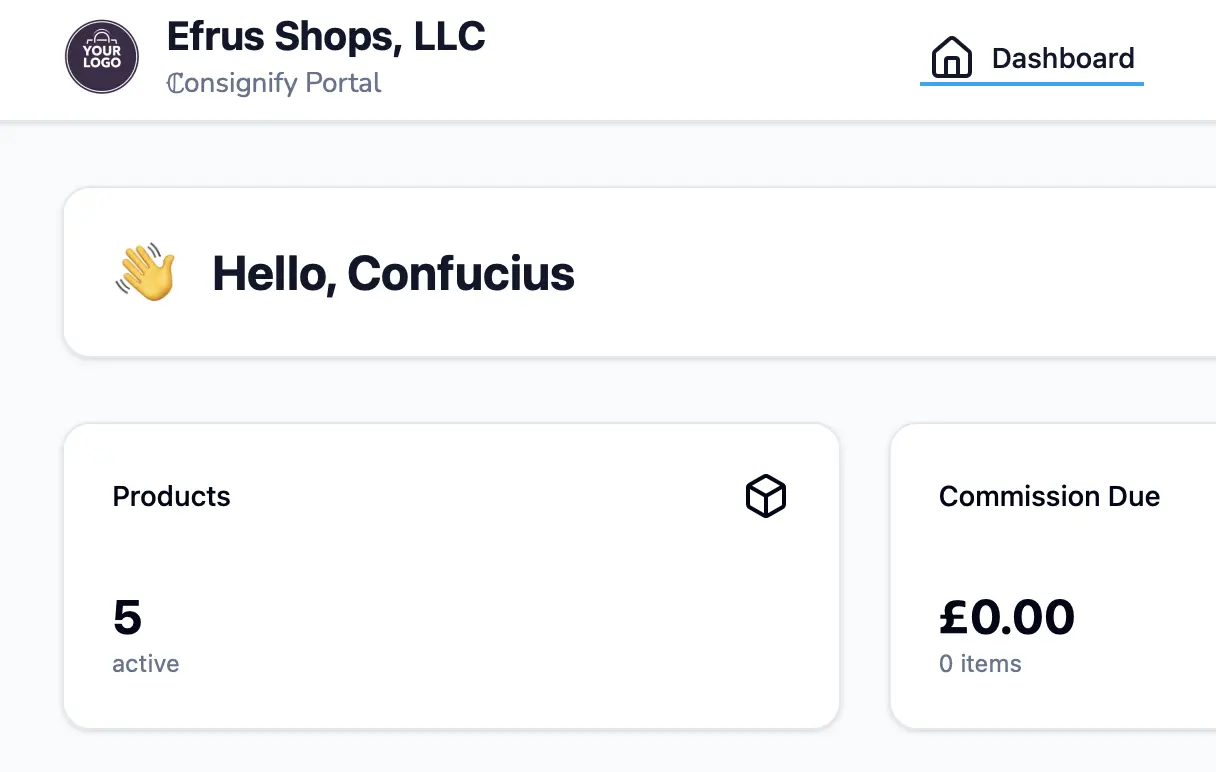
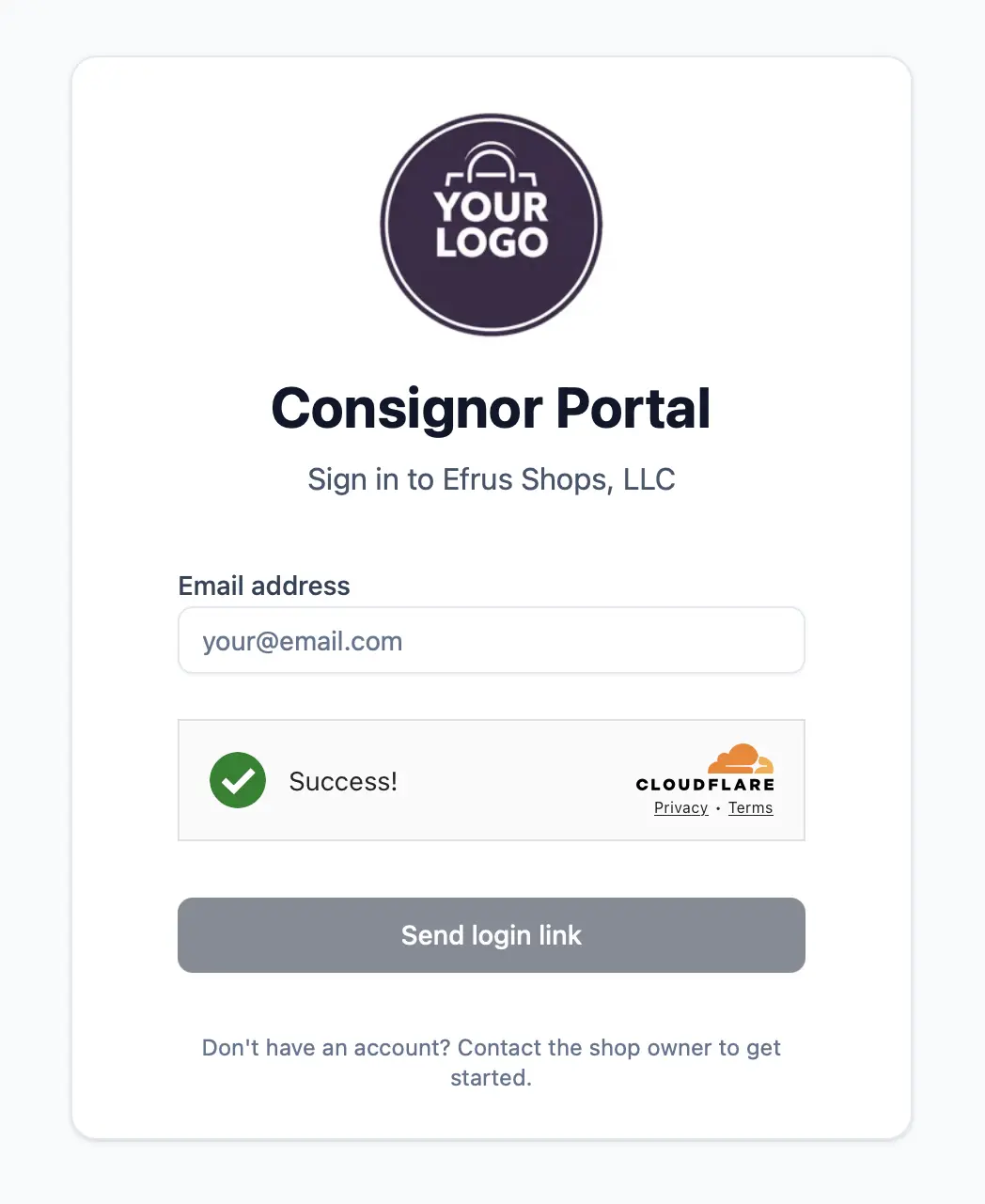
- Portal settings: turn on the consignor portal so consignors can sign in to see their products, sales and payout history (they need an email address to sign in). Choose whether consignors get access by default (you can change it for each consignor), set your portal URL name, and decide whether consignors can see the value of their in-stock inventory and request payouts. On the Large Shop plan, you can also let consignors add draft products and edit their active products. Under Portal appearance, pick a color mode and theme.
- Branding and email previews (under More on the Settings page): upload your logo for the portal and payout receipt emails, and a favicon for the portal, and preview the emails Consignify sends to consignors.
Commission policies
Commission policies determine how Consignify calculates commission on sales that have not been paid out. Policies that depend on cost use the Shopify variant Cost per item value. If cost is missing for a variant, Consignify falls back to the standard percentage policy for that sale.
- Percent of sale: commission is a percentage of the sale price. This is the default.
- Fixed cost per item:
Cost per item, when set for a variant, is used as the commission for each unit of the item sold. The commission is independent of the sale price. - Percent of net:
Cost per item, when set for a variant, is subtracted from the sale price to yield a net sales price. Commission is specified as a percentage of the net sales price. - Percent of sale minus cost: commission is calculated as the percentage of the sale price, minus the
Cost per item. For example, if a $100 item sells with a 60% share and a $20 cost, the consignor receives ($100 × 60%) − $20 = $40.
Note: your "discount handling" setting still applies — you can choose whether the sale price basis is the original listed price or the discounted price.
See the video for details and a step-by-step walkthrough:
You can add consignors in two ways:
- CSV import — a unique
keyfield is required. Includeemailif you want portal access and automated receipts. No two consignors can share the samekeyor share the sameemail - Manually via the UI using the Add consignor form.
See the video for details and a step-by-step walkthrough:
Products may be linked to consignors using several methods:
- Import a CSV that contains product identifiers (Shopify product
IDorhandle) and the consignorkey. You can also specify acommission %(percentage) for the product if it should differ from the consignor or shop default. Fixed commissions (currency amounts) are set in Shopify (variant Cost), not via Consignify CSV. - Use the consignor's Products page and click Assign products.
- Use the Shopify admin product index via a bulk action.
- Assign on an individual product page via the product action or block extension.
See the video for details and a step-by-step walkthrough:
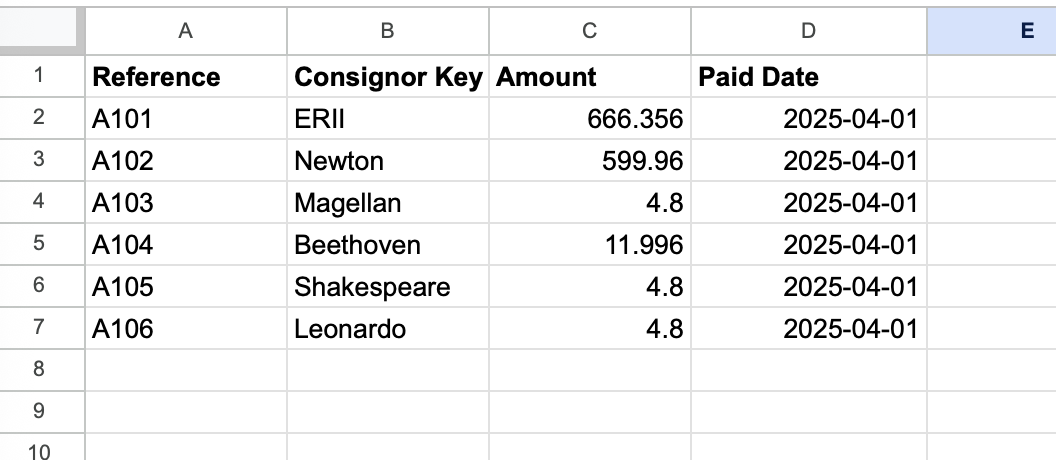
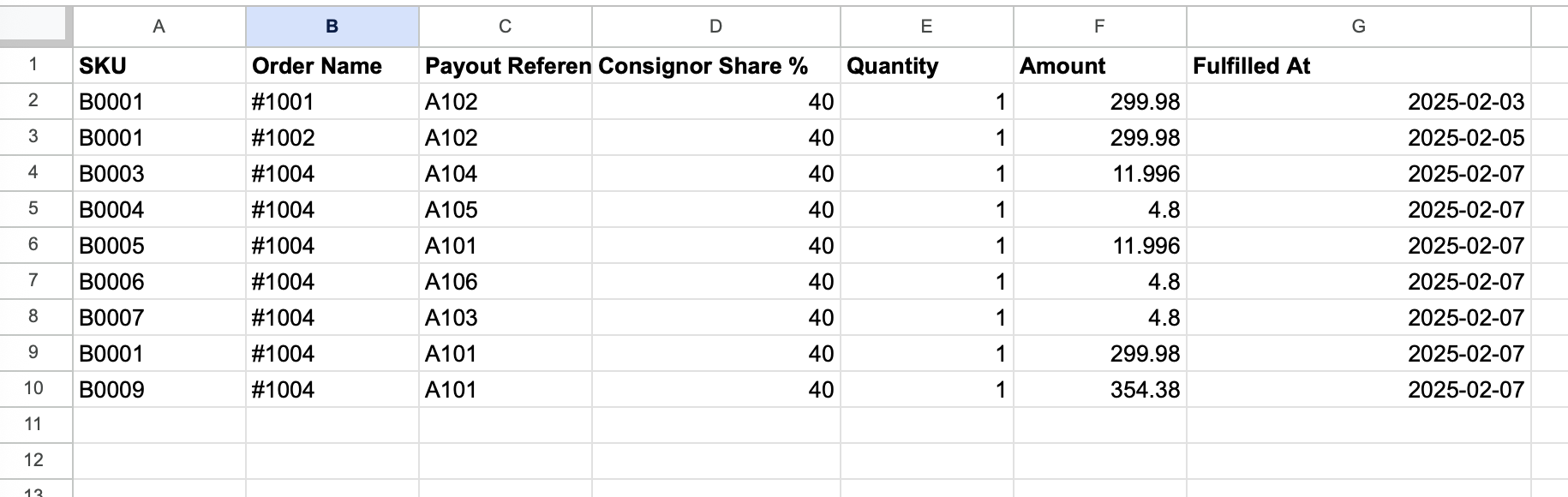
You can import historical payouts via CSV on the Payouts page. There are two types of imports:
- Payouts CSV (one row per payout): Required fields —
Consignor Key,Amount,Paid Date. Optional:Consignify Payout ID,Reference,Adjustment,Currency,Note. If you omitReference, Consignify generates one. A row whose payout already exists for a different consignor is rejected: an import can't change a payout's consignor. - Payout Line Items CSV: Each line ties to a payout via
Consignify Payout IDorPayout Reference. Required fields for line items:Payout reference,Consignor Share %,Quantity,Amount,Fulfilled At Date, and either ShopifyLine Item IDorSKU+ ShopifyOrder Name/Order ID(the order name exactly as Shopify shows it, e.g.#1001; if both are given they must refer to the same order). Optional:Sales Total,Sales Total Before Discount(computed automatically for new line items if omitted). A row is rejected if its sale belongs to a different consignor than the payout, or to no consignor (to pay such a sale, find it on the Sales page with the Consignor filter set to No consignor, then choose Change consignor from its row's menu), or if the sale is already in a different payout (remove it from that payout first).
If you import payouts without line items, Consignify will not mark orders as settled unless they occur before your shop's tracking start date.
Consignify makes it super easy to calculate and track commissions and payouts. You still have to handle payments. To make a payout, follow these steps:
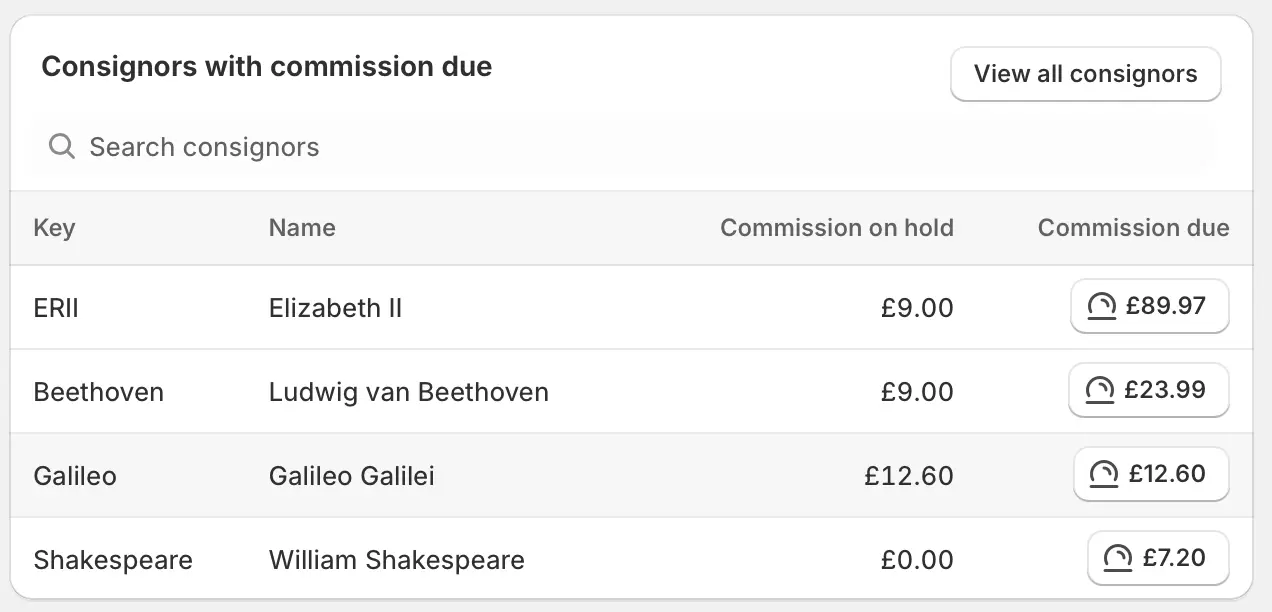
- Select the New payout button at the top of a Consignor's summary page or under the "Commission due" heading in any of the consignor tables.
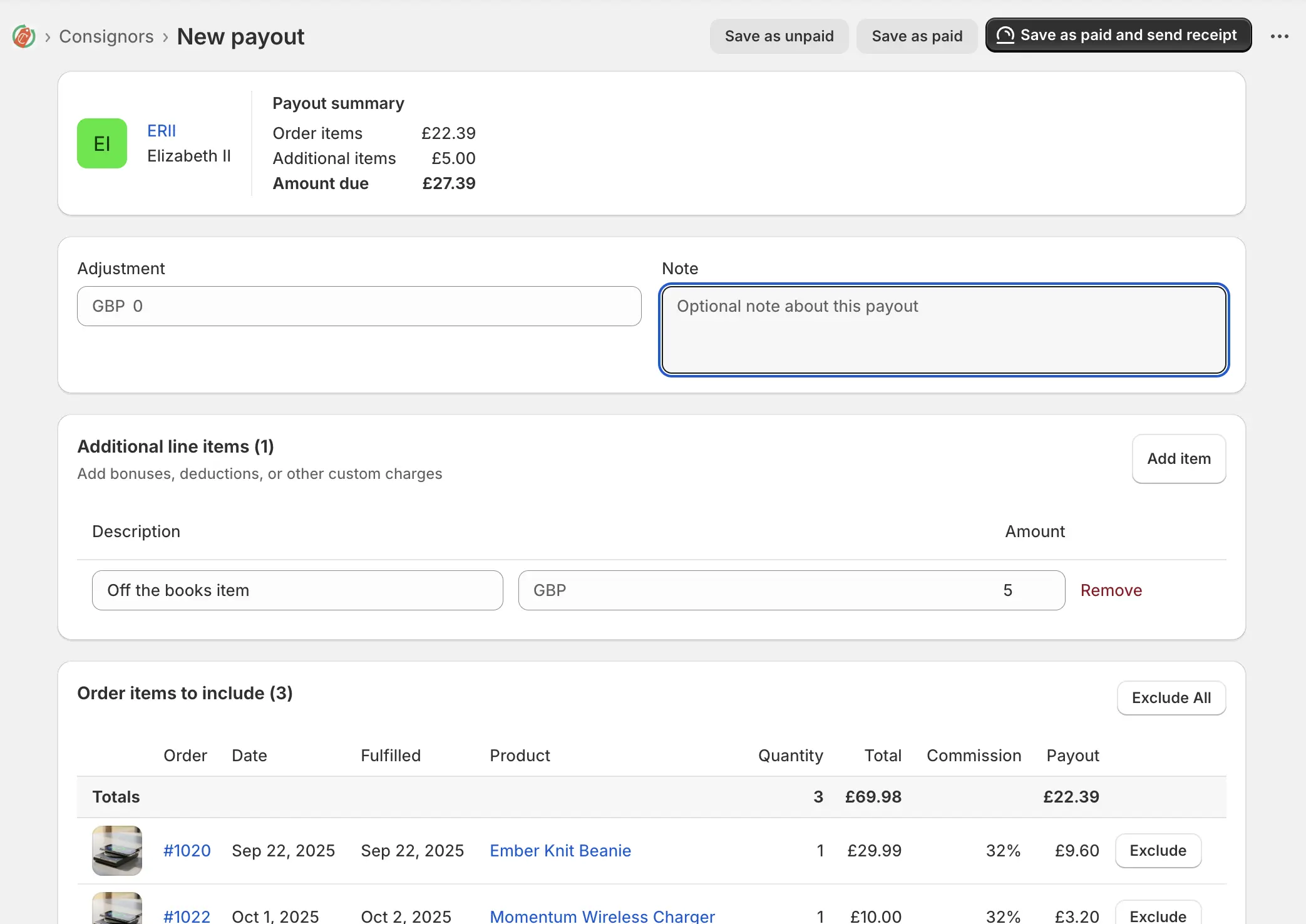
- Configure your payout: customize the included items, add a note, and optionally add an adjustment. You can edit the note after the payout is recorded, but everything else will be fixed.
- Choose how to complete the payout:
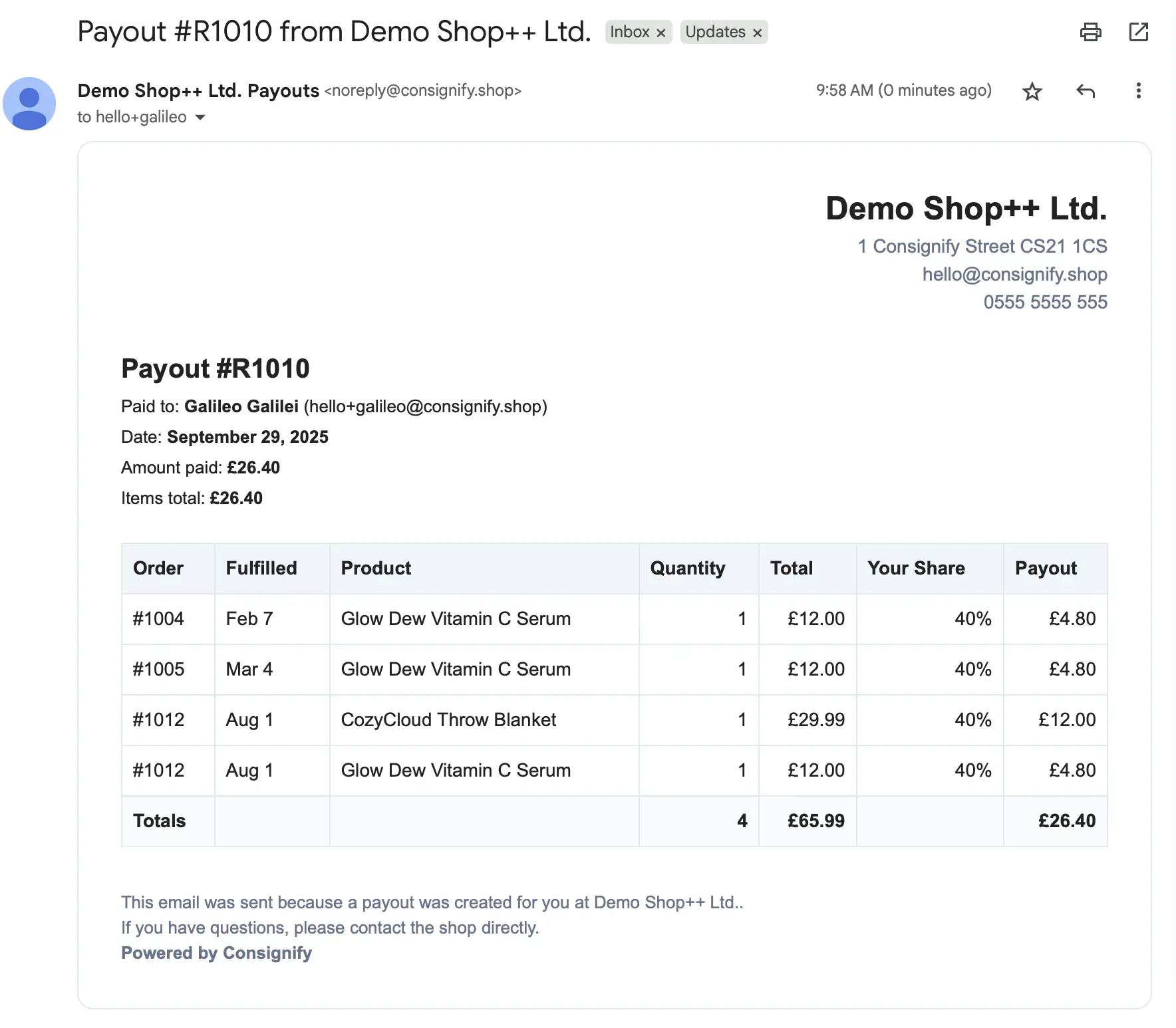
- Save as paid (mark as paid immediately): Pay the consignor using your shop's preferred method (PayPal, cash, bank transfer, etc.), then click Save as paid (or Save as paid and send receipt to immediately send a receipt email).
- Save as unpaid (complete later): If you need the payout reference number before paying, or want to complete the payout later, click Save as unpaid. This creates the payout record with a reference number. You can edit the unpaid payout, mark it as paid when ready, or delete it if needed. Unpaid payouts appear in your payout tables but won't show in the consignor portal until marked as paid.
- Once marked as paid, included items will be marked as paid, and the payout record is available in the payouts tab, payouts page, and in the consignor's portal (if enabled).
A settled sale is one you have already accounted for without recording a payout in Consignify — for example, sales you paid out through a previous system. Settled sales still appear in your sales history, but they are excluded from payouts and earn no commission. There are two places to settle a sale:
From your sales
- Open Sales, or the Sales tab on a consignor, and find the sale.
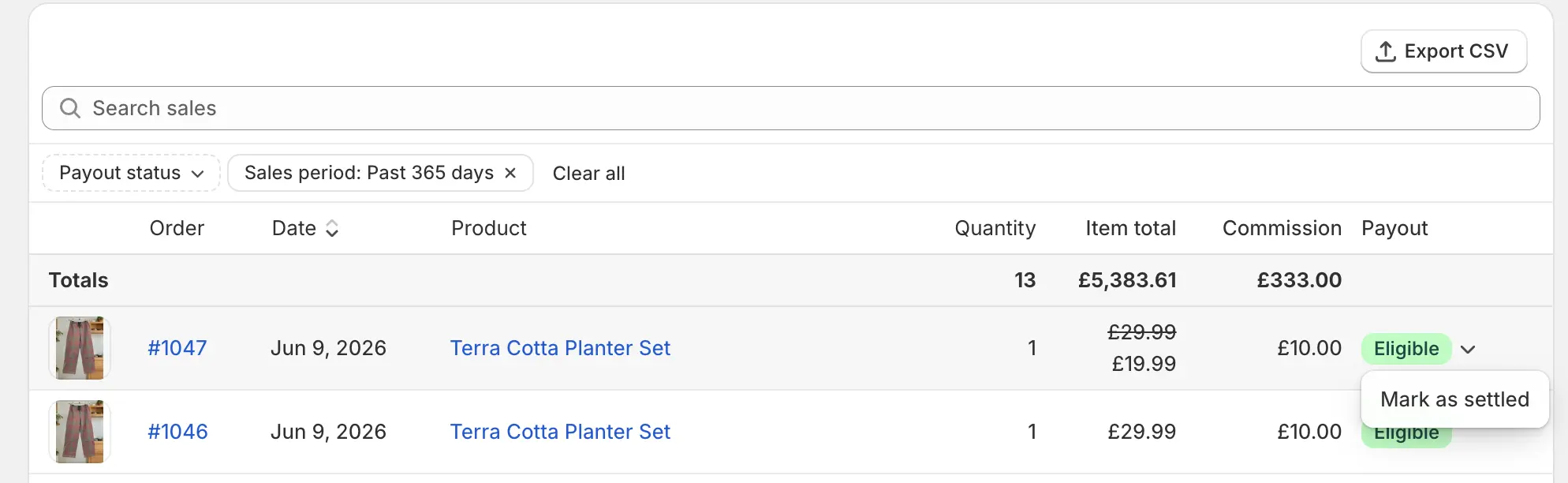
- Open the ⋯ menu at the end of the sale's row, choose Mark as settled, and confirm. The sale's status in the Payout column changes to Settled.
- Changed your mind? Open the ⋯ menu of a sale you settled yourself, choose Mark as unsettled, and confirm to restore the sale's normal payout status.
The same menu has Change consignor, to move a sale that isn't in a payout to another consignor or to none. See the FAQ on changing a product's consignor.
While building a payout
- On a new payout, tick the sales you have already paid for and choose Mark as settled.
- They are settled straight away and leave the payout. Settling is not part of the draft — it applies even if you never save the payout, and it is undone from the Sales page.
Sales from before your settled date are settled automatically, and their menu has no settle action. Change that date under Payout eligibility in your settings instead.
A sale that is already part of a saved payout cannot be settled. Remove it from that payout first, or delete the payout.
1. How does Consignify work?
You assign a consignor to products. When a product with an associated consignor sells, Consignify tracks the order line item and its lifecycle:
- Unfulfilled — not eligible for payout.
- Pending — fulfilled but still within the holding period and not yet eligible.
- Eligible — holding period passed and the item can be included in a payout.
- Unpaid — included in an unpaid payout that hasn't been marked as paid yet.
- Paid — once included in a payout and marked as paid, the line item is marked as paid.
Orders prior to the chosen tracking start date are considered settled and are not eligible for payouts.
Consignify computes the commission due to each consignor in real time. You can record a payout at any time. See the make a payout section above for more details.
2. How are returns handled?
Returning items decreases the recorded quantity. Only items with quantity > 0 are eligible for payouts.
If a returned item was already paid within a payout, the payout record remains unchanged (the payout history is immutable), and the returned item is removed from the sales table.
3. How are discounts handled?
By default, commission is calculated on the net sale price (after discounts). You can elect to have commission calculated based on the listed price (the price you have set for the product variant -- not the "compare at" price) by selecting the option in your shop settings.
Discounts can be applied to an overall order and to individual line-items. Line-item discounts fully apply to that line; order-level discounts are apportioned proportionately across items by Shopify.
4. What happens if I change the consignor for a product?
Each sale stores its consignor. The Sale attribution setting decides what happens when you reassign a product. With Follow the product (the default), its sales that aren't in a payout move to the new consignor. With Fixed at time of sale, each sale keeps the consignor it had when it was sold, even if the product is later reassigned or deleted. A sale in a payout always stays with that payout's consignor.
To change one sale's consignor, open the menu at the end of its row on the Sales page and choose Change consignor. You can also choose No consignor there to remove it. This works for any sale that isn't in a payout. The Sales page lists sales with a consignor by default; set the Consignor filter to No consignor or All sales to see sales without one, which can't be paid until you assign a consignor. With Follow the product, the change lasts until the product is next reassigned. Switching the setting back to Follow the product moves every sale that isn't in a payout to its product's current consignor, including sales you changed by hand. Custom sales and sales of deleted products can be given a consignor the same way. They have no product, so they keep that consignor, even when you switch back to Follow the product.
If a product legitimately needs separate accounting for different consignors, duplicate the product and assign each duplicate to the relevant consignor.
5. What happens if I change the commission for a product?
Unpaid commissions are calculated using your current commission policy. If your policy depends on cost and a variant is missing Shopify Cost per item, Consignify falls back to the standard percentage-of-sale calculation for that sale.
Once a payout is created (either paid or unpaid), commission is fixed for all sales in the payout, so historical amounts do not change.
To use the API you must create an API key on the Settings page. The API is documented in the API docs.