Setup Consignify
Start with settings, consignors and products, then bring in earlier records if you need them. Work through these steps in order:
The simplest start: finish old payouts first
We recommend choosing a clear sales cutoff, settling everything up to that cutoff in your previous system, and using Consignify for sales from the following date. Keep the old records for your accounts. You do not need to import old payouts to start fresh.
For example, settle all sales dated up to and including 30 September in your old system, even if you pay them later. Set “Orders prior to this date have been settled outside Consignify” to 1 October. Sales from 1 October onward can count toward Consignify payouts. The cutoff uses the order date, not the payment or fulfillment date.
- Choose your settings in the app under Settings and setup. The settings to decide are described below.
- Load your consignors, by CSV import or one at a time. See Load Consignors.
- Link your products to consignors. See Assign Products to Consignors.
- Load earlier orders if needed. Consignify records new orders from the moment you install it. To include earlier sales or link them to historical payouts, open Settings and setup › Tools and load your order backlog from the earliest order date you need. With the default Follow the product setting, you can link products before or after loading orders; linking also assigns existing sales that are not in a payout. If you use Fixed at time of sale, link products before loading orders, or assign consignors to the loaded sales manually.
- Import past payouts, if you paid consignors before using Consignify and want that history here. See Import Pre-existing Payouts.
Settings to decide
Every setting has a default, and you can change any of them later. Payout and commission settings apply to every sale that isn't in a payout yet, so a later change also changes what you owe on those sales. A saved payout keeps its amounts.
- Shop details: your shop name, email, phone and address appear on payout receipts and in the consignor portal. Shop language sets the default language of emails (each consignor can have their own). Default fate of unsold items (return to the consignor or donate) applies to consignors set to Shop default, as new consignors are.
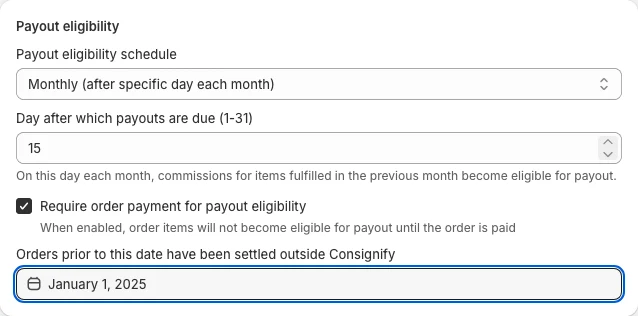
- Payout eligibility: when a fulfilled sale becomes eligible for payout. Rolling makes it eligible a set number of days after fulfillment (30 by default; your return window is a good choice). Monthly makes everything fulfilled in one month eligible on the day you choose in the next month. You can also require an order to be paid before its items become eligible.
- Settled date (Orders prior to this date have been settled outside Consignify, in Payout eligibility): sales before this date remain in your sales history but are treated as settled, so they earn no commission and never come up for payout. It starts as the day before you installed Consignify. Set it to the first sales date you want Consignify to handle: the day after the last sales date you have fully accounted for in your old system, regardless of when you actually made those payments. You can also settle individual sales later; see Settle Sales.
- Commission settings: the default consignor share of sales (40% unless you change it; you can override it for a consignor or a product), the commission calculation method (see Commission policies below), whether commission is based on the price before discounts, and whether to exclude tax when your prices include it.
- Sale attribution (in Commission settings): what happens to a product's sales when you reassign the product. With Follow the product (the default), sales that aren't in a payout move with the product: to its new consignor, or to none if you unassign it. With Fixed at time of sale, each sale keeps the consignor it had when it sold. A sale in a payout never moves. See the FAQ on changing a product's consignor.
- Choose Fixed at time of sale if you reuse a product for different consignors' items. With Fixed, linking a product doesn't change sales already recorded without a consignor, so link your products before you load your order history. Or set up with Follow the product and switch once your products are linked: switching to Fixed changes no existing sale.
- Portal settings: turn on the consignor portal so consignors can sign in to see their products, sales and payout history (they need an email address to sign in). Choose whether consignors get access by default (you can change it for each consignor), set your portal URL name, and decide whether consignors can see the value of their in-stock inventory and request payouts. On the Large Shop plan, you can also let consignors add draft products and edit their active products. Under Portal appearance, pick a color mode and theme.
- Branding and email previews (under More on the Settings page): upload your logo for the portal and payout receipt emails, and a favicon for the portal, and preview the emails Consignify sends to consignors.
Commission policies
Commission policies determine how Consignify calculates commission on sales that have not been paid out. Policies that depend on cost use the Shopify variant Cost per item value. If cost is missing for a variant, Consignify falls back to the standard percentage policy for that sale.
- Percent of sale: commission is a percentage of the sale price. This is the default.
- Fixed cost per item:
Cost per item, when set for a variant, is used as the commission for each unit of the item sold. The commission is independent of the sale price. - Percent of net:
Cost per item, when set for a variant, is subtracted from the sale price to yield a net sales price. Commission is specified as a percentage of the net sales price. - Percent of sale minus cost: commission is calculated as the percentage of the sale price, minus the
Cost per item. For example, if a $100 item sells with a 60% share and a $20 cost, the consignor receives ($100 × 60%) − $20 = $40.
Note: your "discount handling" setting still applies — you can choose whether the sale price basis is the original listed price or the discounted price.
If you want past payouts in Consignify
You can import just the payout totals to show past payments in your payout history, while sales before your start date remain Settled. If you also want to show exactly which sales each old payout covered, import its order items: first import consignors, link products and load the relevant Shopify orders. The historical import guide explains both options.
Check before your first payout
Open a few consignors and check their assigned products, commission share and recent sales. Confirm that sales before your chosen start date show as Settled, and that newer sales have the status you expect. Review one payout before making your first payment.