Assign Products to Consignors
Consignify products are Shopify products. Consignify doesn’t keep a separate product catalogue: it links products that already exist in your Shopify store to consignors. To bring products over from another system, import them into Shopify first, using Shopify’s product CSV import or an import or migration app from the Shopify App Store. Then link them to consignors using one of the methods below.
Products may be linked to consignors using several methods:
A few products or a whole catalogue?
- From a consignor: open their Products tab, choose Assign products, select Shopify products and confirm. This works well for a group of items from one consignor.
- From Shopify’s product list: select products, then choose Set Consignify fields from the bulk actions. Choose the consignor and optionally a product commission. This applies to the products selected on that page.
- On a Shopify product: use the Set Consignify fields action, or add the Consignify info block to the product page. Choose a consignor and use the default share or set a product-specific share.
- For products already assigned in Consignify, select rows on Products to reassign them, remove their consignor or set their commission. To create a new product, use Add product from the consignor’s Products tab or Consignify’s Products page, select a consignor if prompted, and complete Shopify’s product form; the resulting product is linked to that consignor.
- Import a CSV that contains product identifiers (Shopify product
IDorhandle) and the consignorkey. You can also specify acommission %(percentage) for the product if it should differ from the consignor or shop default. Fixed commissions (currency amounts) are set in Shopify (variant Cost), not via Consignify CSV.
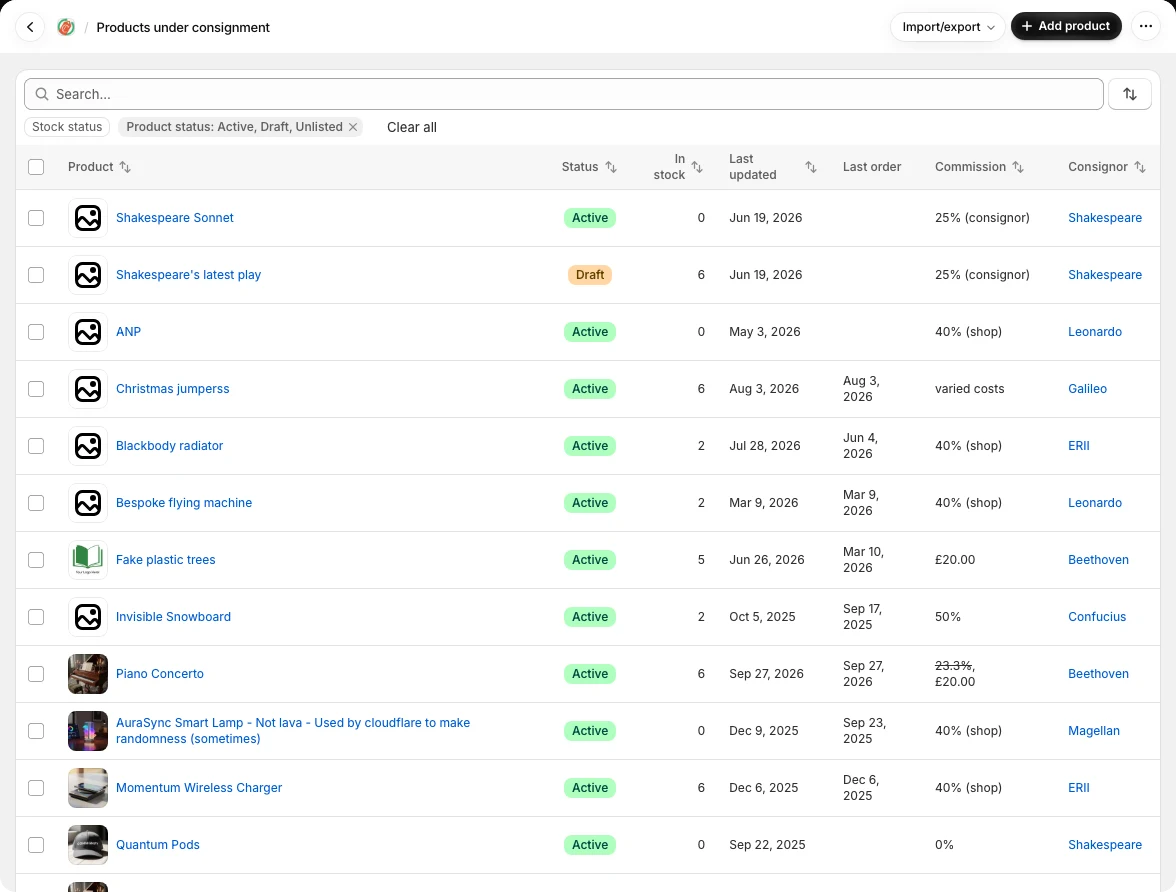
Assign many products with a CSV
- Import your consignors first. Export Shopify products and obtain the product-to-consignor list from your previous system or spreadsheet.
- Match each Shopify product to a Consignify consignor Key. Create one row per product using its Shopify Handle or numeric Product ID. Titles help you check the match, but Consignify does not use titles to identify products.
- Use the example columns: Handle, Consignor Key and, optionally, Commission %. A value of 40 means a 40% consignor share. Omit the commission column if you want to keep existing product commission settings.
- Save as CSV, open Products in Consignify, choose Import/export and import the product consignors CSV. Review the result, correct failed rows and retry those rows. Check a few products on their consignors’ Products tabs.
Handle,Consignor Key,Commission %
vintage-denim-jacket,C001,50
linen-shirt,C001,
This file assigns products already in Shopify; it does not create products. Assignment is for the whole product, including its variants. Use Shopify’s Cost per item field for fixed per-variant commissions.
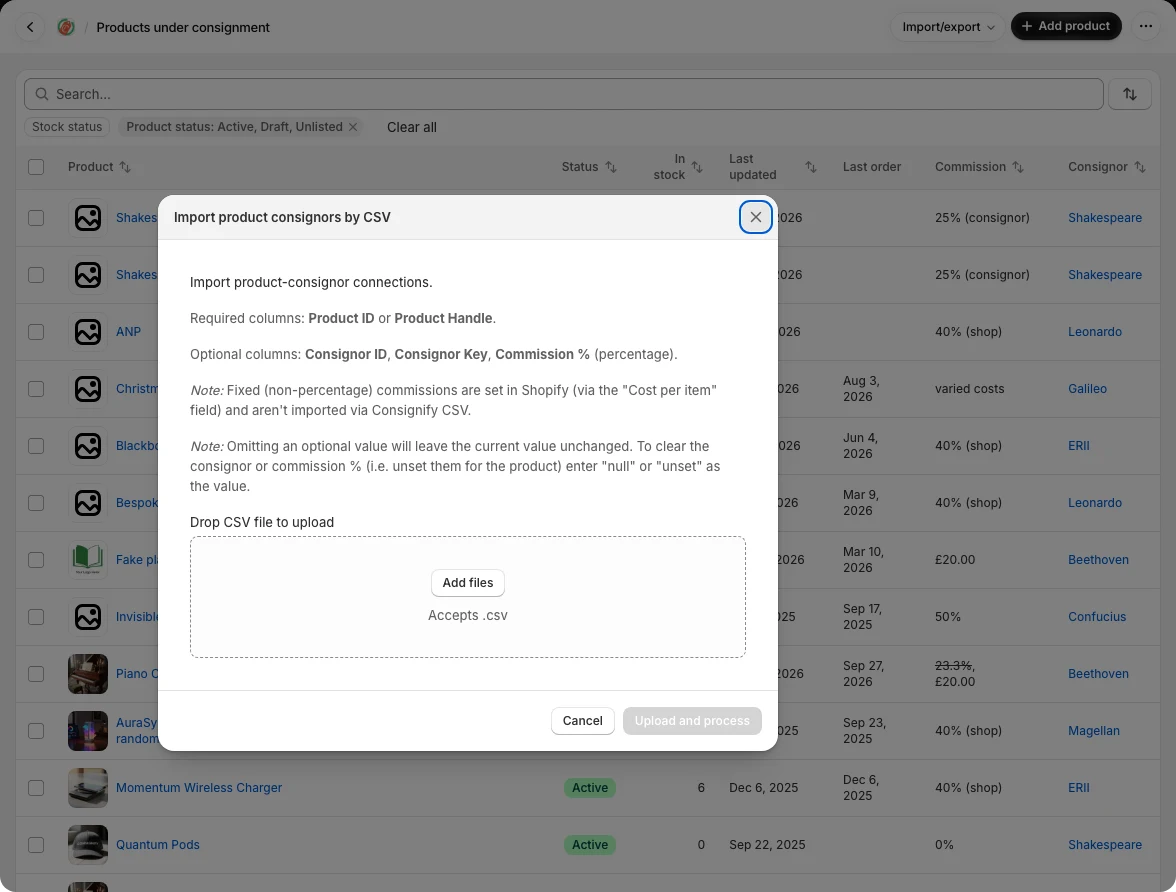
Getting help to prepare the file
Tools such as ChatGPT, Gemini and Claude can often help turn a Shopify product export and an export from your old system into the required CSV. The Shopify export includes handles and titles; your old records need to show which consignor owns each product.
An example request to an AI tool
Using these two exports, prepare a comma-separated CSV for Consignify with exactly these English headers: Handle, Consignor Key. Match Shopify products to the consignor keys in my old system. Keep keys and handles exactly as supplied, including leading zeros. Use titles to help match, but do not guess. Put missing or ambiguous matches in a separate list for me to check. Output one row per Shopify product and no invented values.
Review the matches before uploading, especially products with similar titles. Share only the information needed for matching; names, emails and payment details are usually unnecessary. Keep identifiers as text in your spreadsheet so leading zeros are preserved.
You can also select products in Consignify to reassign them, remove their consignor or change their commission. In a product assignment CSV, a blank consignor or commission cell leaves that setting unchanged; use clear to remove an assignment or return a product’s share to the default.